
Blender in the Cloud: How to Edit and Render
Published on · Updated on

Yes, you can use Blender in the cloud. For interactive editing, a remote workstation does the job. For heavy renders, turn to a dedicated GPU instance or a render farm. To keep a team in sync, rely on versioned cloud storage rather than the older tools that used to be built into Blender. Before handing over your projects, always check where the servers are located and what security guarantees apply.
In short:
- Heavy rendering in Blender calls for a dedicated GPU instance or a render farm to optimize time and cost, depending on file size and the bandwidth used.
- Automatically syncing Blender preferences and files through cloud tools has become less reliable since the recent changes to Blender Cloud; versioned storage or manual scripts are the safer route.
- The security of projects in the cloud must rest on server location, certifications (such as ISO 27001), and the shared responsibility spelled out in the contracts.
- The choice between remote desktops, Docker containers or SaaS depends on how complex your workflow is, the reproducibility you need and your level of technical expertise.
- Before committing fully, it’s wise to run a pilot project on a simple scene to measure transfers, stability and compatibility.
Table of contents
- Technical methods for running Blender remotely
- Remote rendering: options, cost and time benchmarks
- Syncing preferences and managing Blender projects
- Security and compliance before hosting your Blender projects
- How to choose the right approach for your team
- Evidence and limits: why Cloud OS is a relevant option
- Cloud OS plans and how to run a pilot
- What the future holds for Blender rendering and collaboration
- Sources
- Frequently asked questions
Technical methods for running Blender remotely
Three approaches dominate when you want to run Blender somewhere other than your local machine.
A remote desktop (a virtual workstation on IaaS infrastructure) gives you a full machine, with Blender installed just as it would be on physical hardware. You keep all your plugins, shortcuts and usual configuration, which suits interactive editing of complex scenes well.
Containers, usually through Docker, are mainly about reproducibility. A team that automates renders in a CI/CD pipeline benefits from freezing an image containing a specific Blender version, its dependencies and its scripts. This option demands more technical rigour, but it eliminates surprises caused by environment differences between two machines.
SaaS-style services, for their part, have taken a step back. Blender Studio has restructured some services once grouped under Blender Cloud, and features such as automatic preference syncing no longer have the level of support they had at the start.
Before launching a cloud workstation, get these items ready:
- Confirm that the installed GPU drivers match the Blender version you use.
- Check that your third-party extensions and plugins are compatible with the remote environment.
- Validate the licences of any additional software: Blender itself remains free under the GNU GPL, but a commercial render may depend on paid companion tools.
Remote rendering: options, cost and time benchmarks
Two families of solutions compete for cloud rendering. A render farm, a managed SaaS service, distributes your frames across several machines without you having to administer anything. A dedicated GPU instance, rented on IaaS infrastructure, gives you full control but requires manual configuration.
Several factors affect the cost and duration of a render:
- The number of GPUs used and the amount of VRAM they have available.
- The size of the scene files, especially high-resolution textures.
- The bandwidth needed to transfer assets to the remote server.
Providers generally bill either by the compute hour or by credits consumed according to the job executed. The second formula makes budgeting simpler, since the cost is tied directly to the work done rather than to wall-clock time.
Pro tip: always run a test render on a single low-resolution frame before submitting the full sequence: it reveals material errors or missing file paths without wasting hours of compute.

To cut costs, pack your assets before uploading, use proxies for modelling-heavy scenes, and limit iterations by validating your lighting on low-sample renders before the final render.
Syncing preferences and managing Blender projects
The idea of automatic syncing between machines is appealing, but recent history calls for caution. Blender Studio has confirmed that some services grouped under Blender Cloud, including the original preference sync, have been deprecated or restructured. It’s better to build your own workflow than to depend on a tool whose support is no longer guaranteed.
Several alternatives hold up well for a team:
- Versioned cloud storage for
.blendfiles and shared assets. - Git LFS to track changes to large files without bloating the history.
- A shared asset library, local or hosted, to centralize reusable textures and models.
- A small script that exports personal preferences, to be reapplied manually on each machine.
For a team of several artists, add strict naming conventions, file locking during active editing and frequent automatic backups. These are simple habits, but they prevent version conflicts that cost a lot of time to fix.
Security and compliance before hosting your Blender projects
Entrusting 3D scenes, production data or client files to a cloud provider calls for serious vetting. The Government of Canada recommends due diligence before choosing a provider, with particular attention to server location, the certifications obtained and how responsibilities are shared between client and provider.
Here are the points to validate every time:
- The exact location of the servers and compliance with the data residency requirements specific to your sector.
- The certifications the provider presents, such as ISO 27001, and the encryption applied in transit and at rest.
- The shared responsibility model, set out in the provider’s terms of use, and its service level commitments.
- The mechanisms for backup, access control, logging and disaster recovery.
A studio handling sensitive data, for example geological surveys in an exploration project, has every reason to document these answers before signing anything.
How to choose the right approach for your team
The choice depends above all on your actual use. Ask yourself these questions before deciding:
- Do you need real-time interactivity, or only occasional computing power?
- How much latency can you tolerate while editing?
- How often do you run heavy renders?
- Does your data have to stay in a specific jurisdiction?
On the practical side, assess the availability of suitable GPUs, the included storage space, compatibility with your existing plugins, how often automatic backups run and whether the service can be integrated into an existing CI/CD pipeline.
Pro tip: before any commitment, run a two-week pilot with a scene representative of your usual work: measure file transfer time, asset integrity after rendering and connection stability under real conditions.
Evidence and limits: why Cloud OS is a relevant option
Cloud OS offers a platform that handles 3D processing, including Blender, and heavy computation with nothing to install locally, hosted in Québec. The service runs on a deterministic engine designed to deliver reproducible rather than approximate results, a criterion that matters especially for scientific computation or production renders.
A few cases where this approach fits well:
- A regional small business that wants to avoid investing in expensive, rarely used GPU hardware.
- A studio that must guarantee the sovereignty of its production data.
- A team that combines 3D rendering and heavy computation in the same workflow, through the features brought together on a single platform.
Before migrating a full project, confirm the exact GPU specifications on offer, the compatibility of your proprietary plugins and which plan’s monthly allowance fits your volume of use.
Cloud OS plans and how to run a pilot
Cloud OS groups its services into two all-inclusive plans on its pricing page: Personal, at CA$10 per month, and Business, at CA$60 per month, for company needs. Each includes a monthly usage allowance with a gauge that shows where you stand: 3D rendering and GPU compute are drawn from that allowance rather than billed separately. A Web Hosting plan, at CA$9 per month, rounds out the offer for hosting needs. All prices are in Canadian dollars.
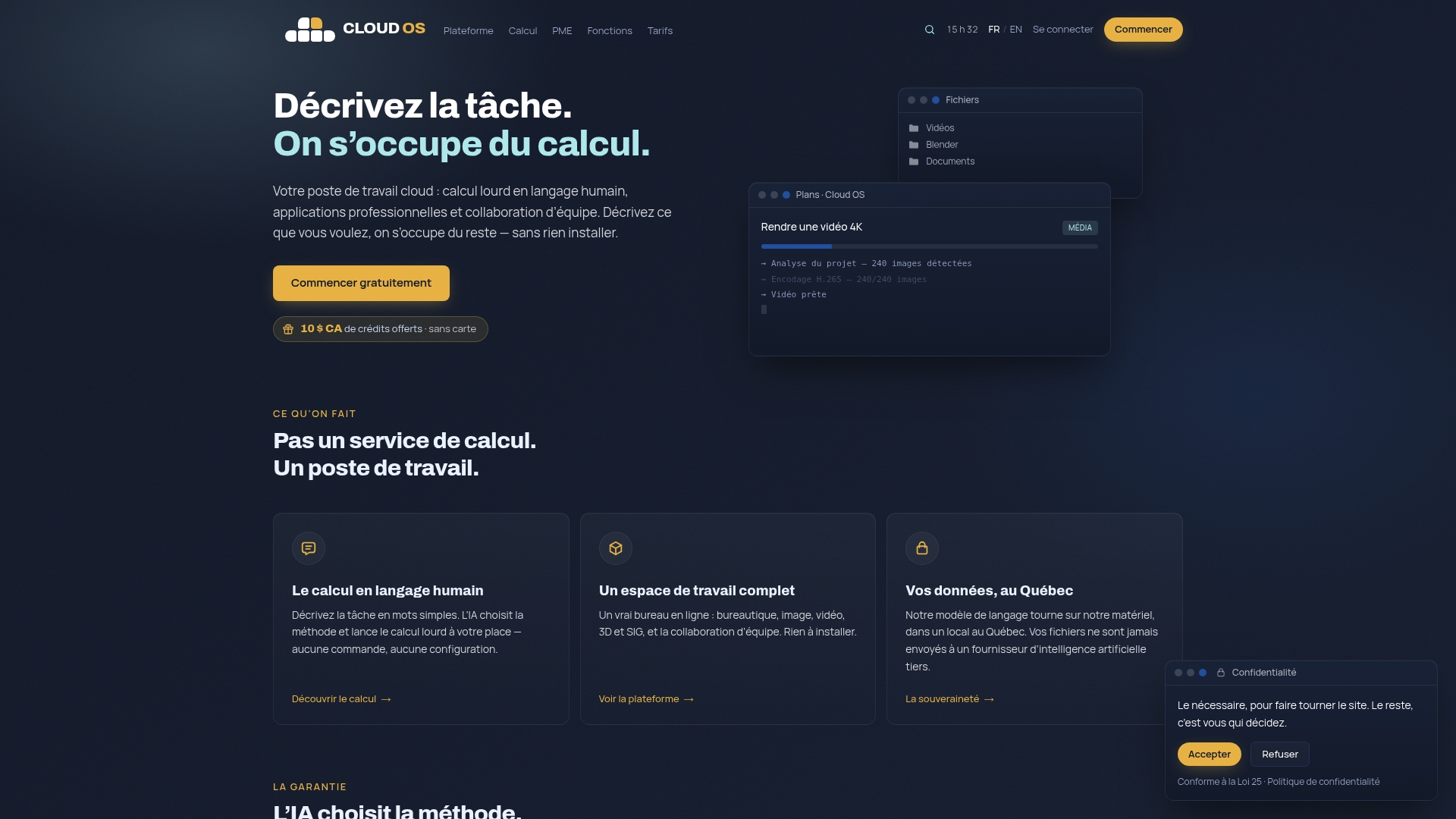
To test the approach without a heavy commitment, start the 14-day free trial (no card required), run a pilot project on a simple scene, render a single frame with heavy compute and 3D rendering, then check the backup and location of your data. See the pricing page to choose the plan that fits your workload.
What the future holds for Blender rendering and collaboration
Dedicated GPU instances will keep gaining ground on generic render farms, because they offer more direct control over the reproducibility of results. That is the criterion that really counts, more than the raw speed a provider advertises.
Before adopting a service, test the stability of its pipeline on a real project and favour providers that clearly explain where your data lives. A limited pilot is always better than a full migration decided on the strength of a product sheet alone.
— Maxime
Sources
- Blender Studio — Blender Cloud services (status)
- Direction on the secure use of commercial cloud services — Government of Canada
Frequently asked questions
What is the Blender application?
Blender is 3D creation software that covers modelling, animation, rendering and video editing. It runs just as well on a local machine as on a cloud workstation, since it installs like any other desktop program.
Is Blender free?
Yes. Blender is distributed under the GNU GPL licence, so using it costs nothing. Only the cloud infrastructure, rented GPU hardware or paid third-party plugins add a cost.
Where can I find free 3D models for Blender?
Community asset libraries and some specialized repositories offer free models compatible with Blender. Always check the licence attached to each model before any commercial use.
How do I install Blender on my PC?
Download the official release from the Blender website and follow the installation wizard, which detects your operating system automatically. On a cloud workstation the procedure is the same, provided the GPU drivers are already configured on the remote machine.