
A shared business calendar puts an end to double bookings
Published on · Updated on

Use a modular shared calendar, backed by a clear protocol, to eliminate double bookings and protect blocks of focused work. Structure your calendars by team or project rather than as one giant block, limit editing rights, and set written rules on booking lead times. The rest of this article covers the features to demand, the governance to put in place, and a six-step rollout checklist.
In brief:
- A shared calendar structured by team or project, with limited rights, significantly reduces duplicates and coordination time.
- Resource booking and integration with everyday tools are essential to avoid conflicts and automate organization.
- Governance must include creating a master calendar, visual conventions, notice periods, and a regular review of access.
- Syncing with Google, Outlook and Apple requires a clear distinction between native sharing and synchronization to avoid duplicates and errors.
- Blocking “deep work” slots in the calendar, and having managers enforce those rules, effectively protects focus time.
Table of contents
- Why a shared business calendar changes the game for your team
- Essential features to demand from a shared business calendar
- Rules and governance: the protocol to copy for your team
- How to sync Google, Outlook and Apple without creating duplicates
- How to protect focused work with a shared calendar
- Rolling out a shared business calendar: the 6-step checklist
- Which calendar architecture to choose for your type of team
- What I learned watching dozens of teams manage their calendar
- Cloud OS centralizes your shared calendar with nothing to install and no compromise on your data
- Sources
- Frequently asked questions
Why a shared business calendar changes the game for your team
A shared business calendar becomes the single source of truth for an entire team. No more back-and-forth emails to find out who is free on Tuesday afternoon: everyone looks at the same shared professional calendar and immediately sees which slots are taken.
The most visible effect is on email volume. Setting up a meeting for five people usually takes several exchanges before a common slot is found. With a well-configured shared calendar, that negotiation disappears: automatic email-calendar synchronization eliminates most of the crisscrossing proposals.
The concrete benefits add up quickly:
- Fewer duplicate entries: a single reference per team or project prevents two people from booking the same room or the same client slot.
- Less coordination time: teams that adopt a structured team scheduling system markedly reduce the exchanges needed to organize a meeting.
- Visibility into real workload: a manager sees at a glance who is overloaded and who has availability, without having to ask.
- Protected focus blocks: marking “deep work” slots as busy keeps impromptu meetings from eating into production time.
That last point deserves a closer look, because most companies configure their team coordination tool for meeting visibility, never for protecting work. A poorly designed shared calendar then becomes a tool that multiplies interruptions instead of reducing them.
Essential features to demand from a shared business calendar
Not all business calendar applications are created equal. Before choosing one, check that it covers at least these five points.
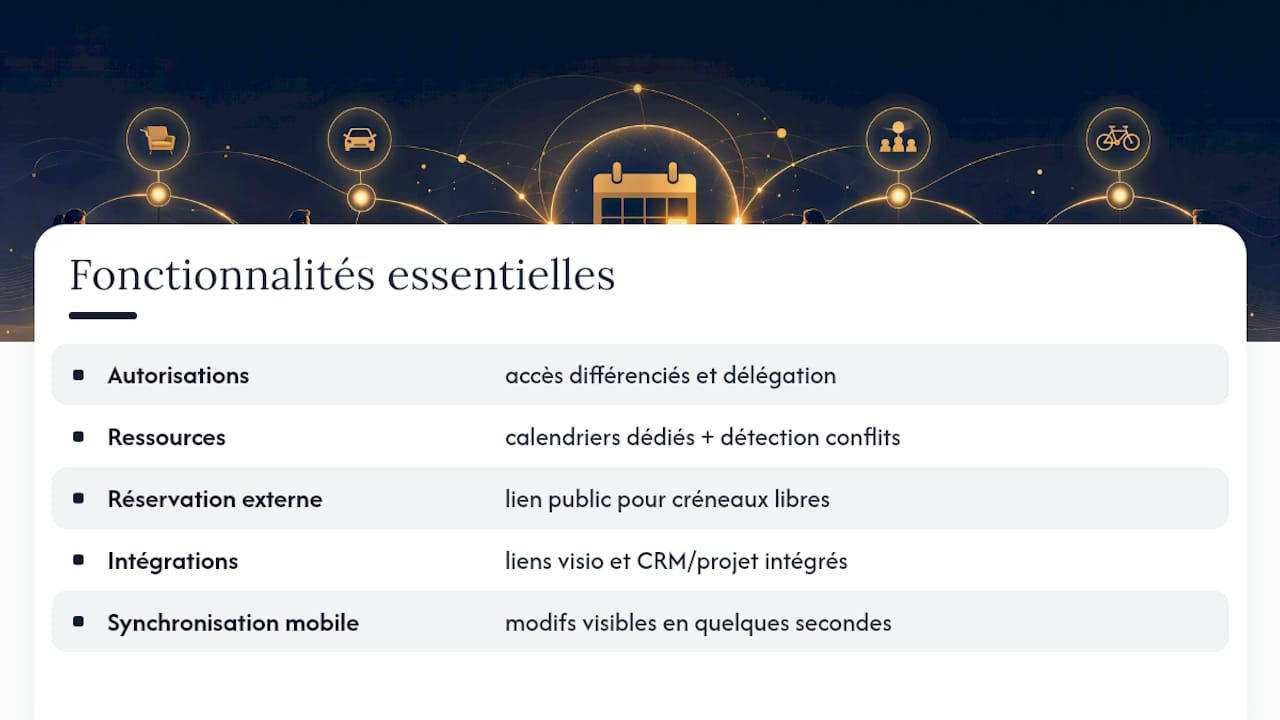
Permission levels and delegation. A good system clearly distinguishes who can view, who can propose changes, and who owns the calendar. Outlook, for example, offers several access levels and delegation features that let you designate an assistant to manage an executive’s calendar without giving them full access to their entire mailbox.
Resource booking. Meeting rooms, company vehicles, projection equipment: these resources must appear as calendars in their own right, with automatic conflict detection. Without that mechanism, two teams book the same room on the same day and only discover the problem when they arrive at a closed door.
External booking pages. For sales or customer support teams, a public booking link avoids ten emails to pin down an appointment. The visitor picks a free slot directly, without seeing the details of the internal calendar.
Integrations with everyday tools. A calendar cut off from video conferencing, the CRM or the project management tool forces people to re-enter information by hand. Check that meetings automatically generate a video link, and that project deadlines can show up directly in the shared calendar.
Mobile support and sync latency. A change made on a computer must appear on the phone within seconds, not minutes. Apps like TimeTree are a good illustration of this kind of consumer use, designed for quickly sharing events between several people, even if its positioning remains more family-oriented than professional.
Rules and governance: the protocol to copy for your team
Technology never fixes a poorly governed shared calendar. Most scheduling conflicts come from an organizational problem: nobody clearly owns the calendar, no protocol exists in writing, or access is never revoked after someone leaves.
Here is a simple protocol to adapt:
- Create the master calendar from a generic organizational account, not from an employee’s personal account. That way you don’t lose ownership of the calendar the day that person leaves the company.
- Limit the number of editors to two or three people at most per calendar. A higher number multiplies editing errors and accidental deletions of recurring events.
- Adopt fixed visual conventions: one colour code per team, systematic tagging for absences, a prefix for external events.
- Set a minimum notice period for scheduling a meeting, for example 24 hours, unless an emergency is explicitly flagged.
- Review access every quarter. Periodic reviews of shares and permissions reduce stale access and limit the risk of data leaks.
- Automate access revocation as soon as a departure is announced to human resources, rather than waiting for the person’s last day of work.
Favour a modular architecture, with one calendar per team or per project, rather than a single mega-calendar where everyone sees everything. Readability suffers fast, and nobody knows anymore who is actually responsible for what.
Pro tip: Name an identified “calendar owner” for each shared calendar, just as you would a document owner. This single measure eliminates the majority of ownership conflicts seen in teams that never formalized the question.
How to sync Google, Outlook and Apple without creating duplicates
The most common confusion is mixing up native sharing and synchronization. They are two different mechanisms, and confusing them creates exactly the duplicates you are trying to avoid.
Native sharing displays an existing calendar to other users of the same platform, in read or edit mode. Synchronization, on the other hand, moves information between two different ecosystems, for example a Google account and an Outlook account. Depending on the level of confidentiality you need, it is better to choose between a free/busy reflection, which hides event details, or full two-way synchronization when details genuinely need to flow between systems.
A few technical points deserve a systematic check before rolling a configuration out to the whole company:
- The mobile cache can delay the display of a recent change, especially on Apple’s native apps.
- Publishing a calendar in iCal format lets a third party import a simple availability view (in French) without giving them full access, a handy option for external partners.
- Individual shares often have limits on their number or update frequency depending on the platform.
A third-party sync tool only becomes necessary for genuinely mixed teams, where some people use Google Workspace and others Microsoft 365 or Apple Calendar day to day. For a homogeneous team on a single platform, the native functions are generally enough and avoid an unnecessary layer of complexity.
If you notice duplicates after setting up a sync, the culprit is almost always a redundant connector. Disable one of the two active connectors rather than adding a third to “fix” the problem.
How to protect focused work with a shared calendar
A poorly used shared calendar becomes a magnet for interruptions. The solution is to treat focus time like any other appointment, with the same visibility and the same protection.
Explicitly block “deep work” slots shown as busy in the shared calendar, not just as a personal reminder invisible to others. A recurring event, two or three mornings a week, is usually enough to get the message across to the team.

Back that block with a clear rule known to everyone: a meeting request on a slot marked “focus” must be declined or postponed by default, unless there is a genuinely justified emergency. Some teams add a standardized message to the calendar’s automatic reply to remove any ambiguity.
This protocol only works if managers respect it first. Nothing destroys a protected focus block faster than a manager who systematically works around it for their own emergencies. Protecting these blocks through the shared calendar noticeably reduces unplanned interruptions, provided the rule applies to the entire hierarchy, with no silent exceptions.
Rolling out a shared business calendar: the 6-step checklist
Creating an effective shared calendar is not something you improvise in a single team meeting. Here is the sequence that works, tested on organizations of various sizes.
- Define the needs and the authority of the master calendar. Who decides on the final structure? Who settles disagreements over the priority of a slot?
- Choose the architecture. Go for separate calendars per team or per project rather than a single block, and configure permissions at this stage, not as an afterthought.
- Sync with existing tools and run a pilot. A small group of five to ten people is enough to spot synchronization problems before a general rollout.
- Communicate the protocol and train key users. A one-page document, with the rules on colours, notice periods and ownership, is worth more than an hour-long training session quickly forgotten.
- Run the pilot and collect metrics. Count the number of residual conflicts, the coordination time as perceived by the team, and qualitative feedback after two to three weeks of real use.
- Scale up and plan a quarterly review. Extend to the whole organization only after fixing the friction points identified during the pilot.
Pro tip: Never skip the pilot step, even for a small organization. Shared calendar problems almost always reveal themselves in use, never on paper at configuration time.
Which calendar architecture to choose for your type of team
A startup benefits from keeping things simple: one central calendar for the whole organization, complemented by project calendars accessible only to the people involved. Access stays restricted while the team is small, which avoids heavy governance for ten people.
A small or medium-sized business organized into distinct functions (sales, support, human resources) benefits from creating one calendar per function, linked to groups defined in Google Workspace or Exchange. Each function manages its own internal conventions while remaining visible to management.
Field teams, for their part, mainly need solid resource management: vehicles, equipment, service slots. The priority is conflict-free booking rather than a wealth of collaborative features.
For support or customer-facing teams, external booking pages with automatic routing keep inboxes from clogging up. A partner like Ilikoo offers this kind of dedicated booking solution to secure client appointments without exposing the full internal calendar.
What I learned watching dozens of teams manage their calendar
Most companies treat the shared calendar as a simple technical tool, when it is above all a matter of collective discipline. I have seen teams with excellent tools and non-existent governance, and teams with a basic tool but a clear protocol: the latter always save more time than the former.
The real gain doesn’t come from the synchronization itself, but from the protection of focus time it makes possible once properly configured. An environment like Cloud OS illustrates this logic of centralization: bringing calendar, email and work tools together in a single space reduces the friction that otherwise pushes teams to multiply channels and duplicates.
If you are starting out, test a pilot on a single team for three weeks before rolling out more widely. It is the best way to spot real friction before it turns into habit.
— Maxime
Cloud OS centralizes your shared calendar with nothing to install and no compromise on your data
Cloud OS brings your calendar, your email and your office tools together in a single cloud environment, hosted on Québec infrastructure, so you don’t have to juggle several accounts and fragile sync connectors.
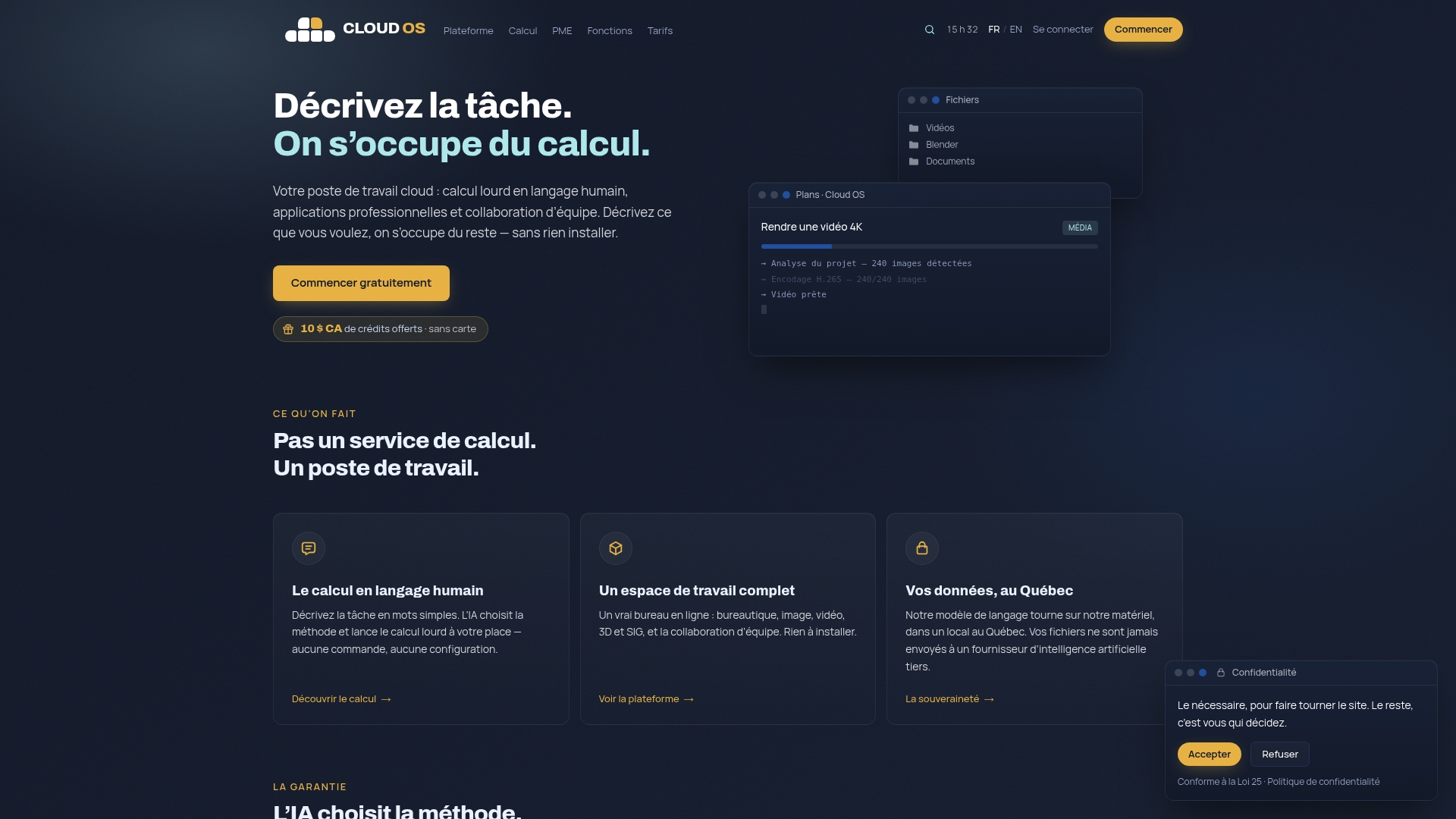
Unlike a patchwork of separate shared calendar, video conferencing tool and CRM, Cloud OS centralizes these functions in one space, with your data staying on locally owned servers rather than scattered across several foreign providers. Pricing follows a subscription model with several access tiers, each giving access to the complete work environment with no local installation. For a team that also handles heavy tasks like GPU computing or 3D rendering, the features page details the modules available beyond simple calendar coordination. See the full pricing grid to choose the plan that fits the size of your team and start your setup today.
Sources
To configure access levels and delegation, refer directly to Microsoft’s Outlook support, which details each sharing option. The TimeTree app remains a useful reference for understanding consumer sharing habits. For teams working across several ecosystems, the guide to cross-platform team calendars details the trade-offs between free/busy and two-way synchronization.
- Outlook support
- TimeTree: Shared Calendar - App Store - Apple
- Shared team calendar guide for cross-platform teams
Frequently asked questions
How do you create a collaborative calendar in a company?
Create the calendar from a generic organizational account, define two or three editors at most, then configure read and edit permissions before inviting the whole team. Test this configuration on a small pilot group for two to three weeks before rolling it out more widely.
What is the best free shared calendar for a business?
The Google Workspace and Microsoft 365 suites already include a working shared calendar with rights management, which covers most of a small team’s needs at no extra cost. The choice mostly depends on the ecosystem your company already uses for email.
What is the best shared calendar for a mixed team?
For a team split between Google, Outlook and Apple, the central question isn’t the application but the level of synchronization chosen: free/busy reflection to preserve confidentiality, or two-way synchronization if event details need to flow between systems. A centralized environment like Cloud OS avoids precisely this complexity of multiple connectors.
Which shared calendar app should you choose for professional use?
It depends on your needs: Google’s and Microsoft’s native tools are enough for a homogeneous team on a single platform, while an app like TimeTree suits lighter or family use. For a business looking to centralize calendar, email and work tools in one place, a platform like Cloud OS offers an integrated alternative with affordable pricing through a monthly subscription.
How much does a shared calendar integrated into a cloud work environment cost?
Access to a work environment including a shared calendar is offered through different monthly pricing plans, the details of which are available on the pricing page.