Business and productivity
Zotero online, with nothing to install
The free reference manager researchers rely on, in your browser.
Included from the Personal plan
Your references, sorted and cited
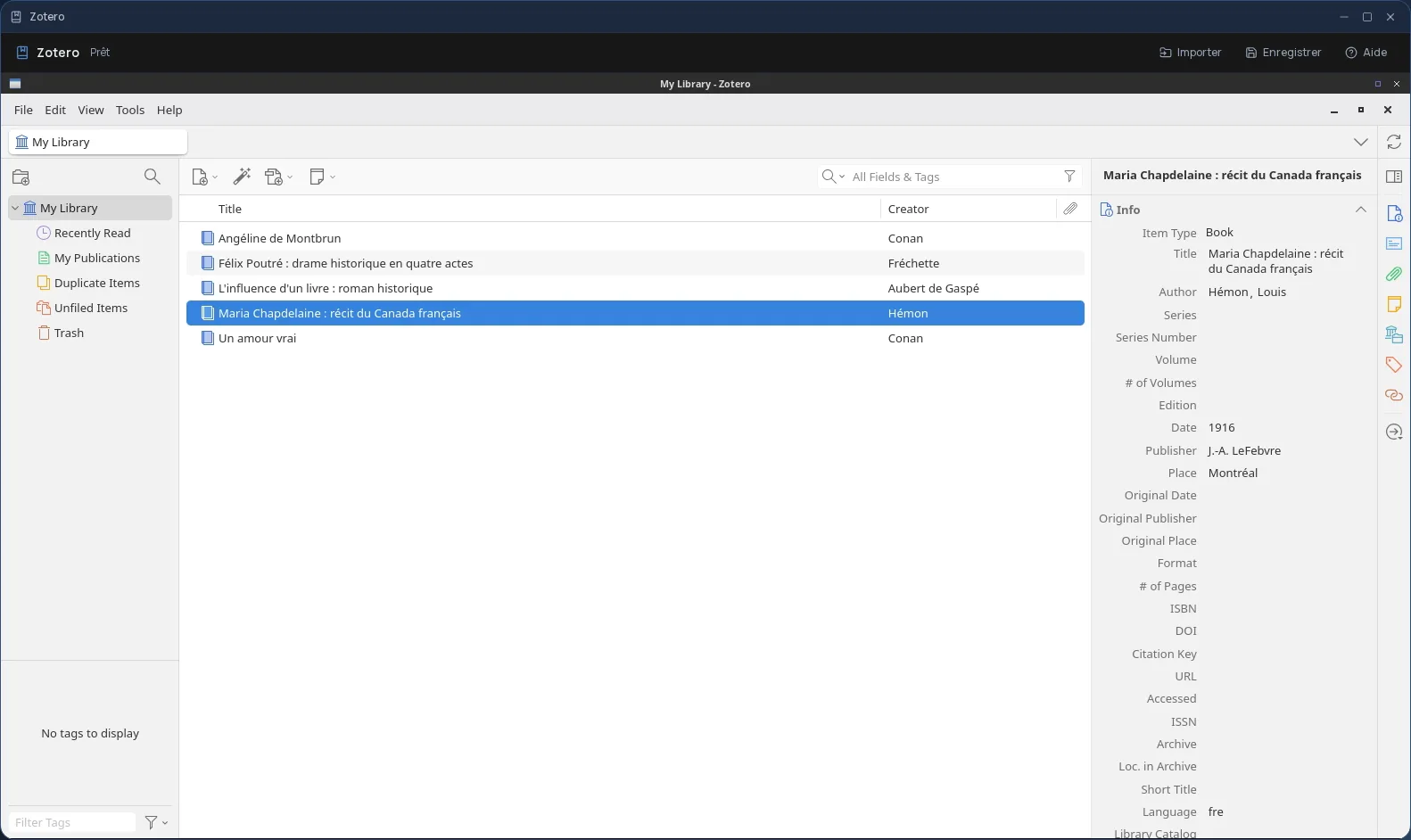
Zotero is free reference management software, widely used in universities. It files articles, books and reports into collections, with their tags and notes, and produces a bibliography in the required style: APA, Chicago, MLA and many more.
In Cloud OS, the software itself runs in a window of your online desktop. Nothing to install on your computer, and the same Zotero on every computer you sign in from.
From your files to the bibliography
You pick your reference exports (RIS, BibTeX) or your PDF articles in the Files app: they are copied to Zotero's “Stockage” folder, from which you import them. You sort, fill in the details, then save the bibliography or an export of your library to that same folder and send it back to Files.
- Several files imported one after another, without closing the import window.
- Every file sent back arrives as a new file: the original is never overwritten.
- Your files are hosted in Québec.
Good to know
A Zotero session is temporary, and the library inside it goes away when you close it. To get it back next time, export it to a file (RIS or BibTeX) saved in “Stockage”, send it back to Files, and import it again in your next session.
Only files placed directly in the “Stockage” folder go back to Files, not those in a subfolder. Zotero is used from a computer; it is not offered on phones.
Frequently asked questions
- Do I need to install Zotero to use it in Cloud OS?
- No. Zotero runs in a window of your online desktop, from the browser. There is nothing to install or update on your computer.
- Is Zotero included in the subscription?
- Yes, from the Personal plan, like the other desktop software. There is no fee per app: each launch counts as one task in your plan's allowance.
- Is my Zotero library kept from one session to the next?
- Not inside Zotero itself: the session is temporary. Export your library to a RIS or BibTeX file and send it back to Files; you can import it again in your next session.